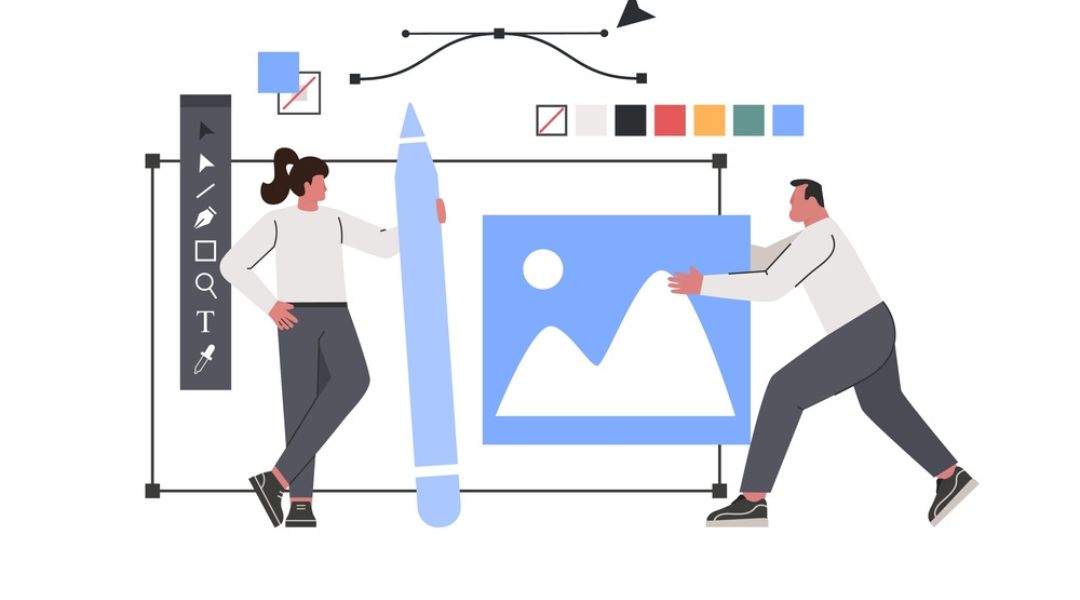
If there’s one thing I’ve learned after nearly a decade in social media marketing, it’s this: great post design doesn’t have to take hours—or require a full creative team.
With the right tools, you can create clean, engaging visuals that stop the scroll, drive action, and stay on-brand. Whether you’re a solo creator, a small business, or running content for a larger team, the tools you use will either slow you down or help you scale faster.
In this article, I’ll walk you through:
- My top tools for post design across Instagram and Facebook
- What each tool does best (and when to use it)
- Features that help speed up your workflow
- Bonus tools for branding, video, and analytics
- How to choose the right mix for your needs
Let’s make the design process smoother—and your posts a lot more effective.
1. Canva Pro: My Daily Go-To for Social Post Design
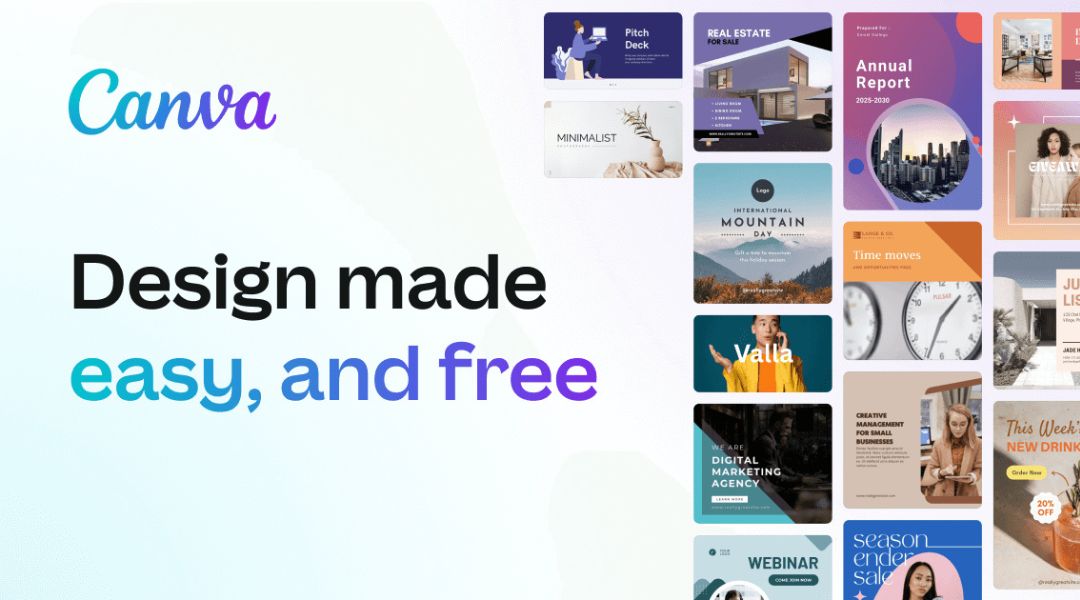
I use Canva Pro nearly every day, and for good reason. It’s beginner-friendly but flexible enough for pros too.
What I use it for:
- Templates for Instagram posts, stories, and Facebook ads
- Quick resizing for multiple formats
- Simple animations for Reels and video posts
- Team collaboration and shared brand kits
Canva also supports scheduled publishing (yes, it posts directly to Facebook and Instagram), so if you want to go from design to done in minutes, this is your tool.
Need template ideas? I shared a few favorites in my post design templates guide.
2. Figma: Best for Custom Layouts and Team Workflows
When I need more control over spacing, layout, or collaboration, I turn to Figma. It’s especially useful when designing post grids, visual systems, or client branding kits.
Best for:
- Creating reusable design components
- Multi-post layouts and brand guidelines
- Comment-based collaboration with team or clients
- Consistency across all visual assets
While it has a steeper learning curve than Canva, the flexibility is unmatched.
3. Meta Business Suite: Preview, Schedule, and Track
This tool isn’t just for publishing—it’s also great for previewing how your graphics will look in-feed before they go live.
Key features I rely on:
- Post previews for Instagram and Facebook (especially for mobile)
- Built-in insights and engagement data
- Cross-posting to Instagram and Facebook with one upload
- Scheduling posts and stories in advance
You can also test different creative formats and compare post types using the dashboard. I recommend pairing this with Canva for a complete design + scheduling workflow.
4. Remove.bg: Fast Background Removal for Product & People Shots
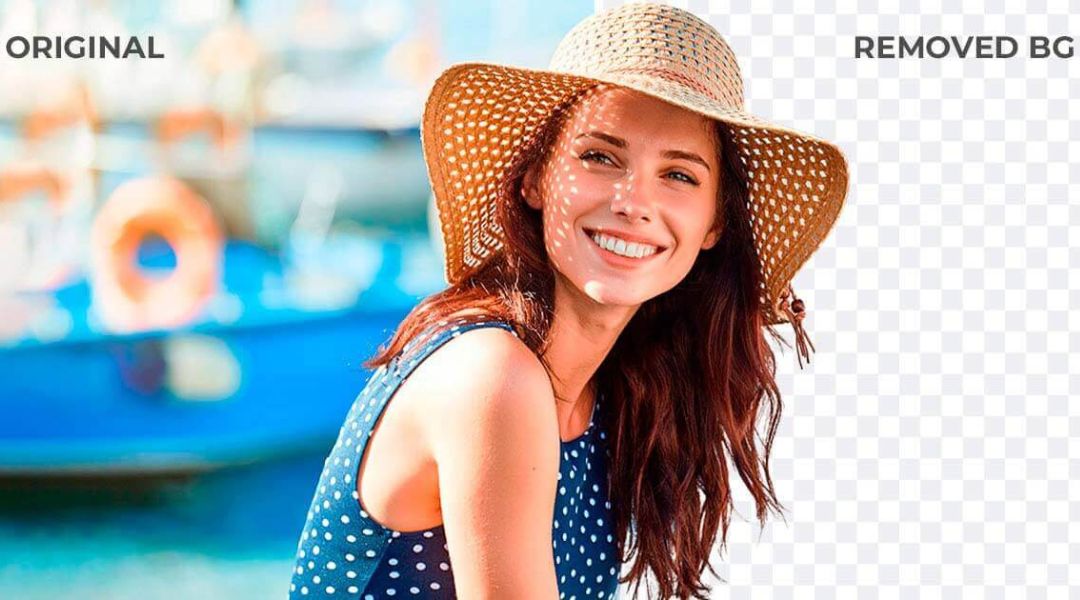
I use Remove.bg to quickly isolate product images or team headshots without Photoshop. It removes backgrounds in seconds—and it’s surprisingly accurate.
Use cases:
- Creating clean, branded product posts
- Layering people or objects over graphic backgrounds
- Quick editing for Stories or carousel posts
Drop in your image, download the transparent version, and you’re ready to build in Canva or Figma.
5. Unsplash & Pexels: Free High-Quality Visuals
Sometimes you need a clean image to support a message, but not every brand has a custom photo library. That’s where stock platforms like Unsplash and Pexels come in.
Why I use them:
- High-res, royalty-free photos
- Great for filler backgrounds or lifestyle content
- Compatible with Canva and Figma integrations
Be sure to choose images that match your brand style—these are best used with overlays or subtle effects to stay on-brand.
6. Google Fonts: Clean, Free Typography for Social Posts
Font choice can make or break your post design. I prefer Google Fonts because they’re free, easy to pair, and web-safe across all platforms.
What I look for:
- Readability on mobile
- Font pairings that match brand personality
- Styles that feel fresh without being hard to read
If you’re unsure where to start, stick with sans-serif fonts like Inter, Poppins, or Montserrat—they work great for headlines and body copy.
More on type and layout: Fonts, colors, and layout strategies.
7. GIPHY: Add Playful Motion to Stories and Reels
When I want to add movement to a Story or Reel, I browse GIPHY for custom brand-aligned GIFs or overlays.
Great for:
- Reaction visuals
- Call-to-action animations (“Swipe up”, “Tap here”)
- Branded loops and logo GIFs
Just don’t go overboard. Use animation to enhance—not distract—from the message.
8. Adobe Express: Quick, Polished Visuals with Premium Effects
If you want a bit more “visual polish” than Canva but don’t need full Adobe Creative Cloud, Adobe Express sits right in the middle.
Strengths:
- Templates with more premium feel
- Adobe-style effects and typography
- Branded content resizing in a few clicks
- Access to Adobe Stock integration
It’s especially good for creating sponsored post variations or stylized ads for Meta.
9. Bonus: Use These Tools to Speed Up the Whole Process
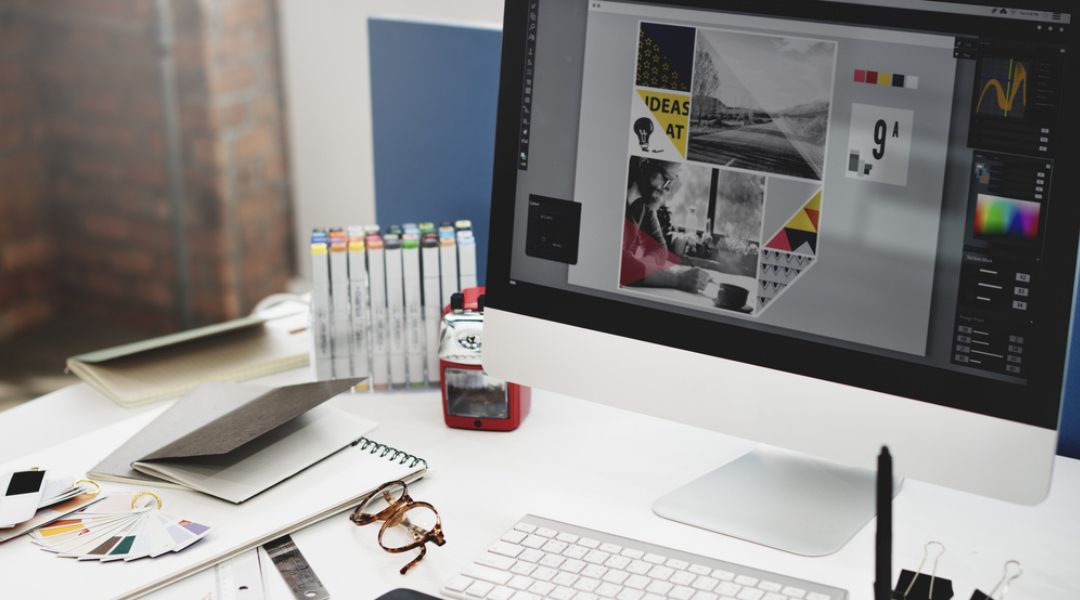
Here are a few more tools I occasionally use depending on the project:
- Coolors.co – Build fast color palettes
- Brandfetch – Instantly pull brand logos or palettes
- Kapwing – Easy video resizing or meme creation
- Loom – Record design walkthroughs for team collaboration
And if you’re handling design and content planning? Pair these tools with a proper content calendar system to streamline everything.
Final Thought: Your Tools Should Match Your Workflow
Choosing design tools isn’t just about features. It’s about what helps you get the job done faster, better, and more consistently.
If you’re overwhelmed by choices, start simple:
- Use Canva Pro for everyday post design
- Add Meta Business Suite for scheduling
- Use Figma or Adobe Express if you need more control
- Support everything with tools like Remove.bg, GIPHY, and Unsplash
Your toolkit should support your goals—not get in the way. And if your content still needs some fine-tuning, explore these tips to design posts that convert.