
It’s Not as Complicated as It Looks
If you’re staring at the Google Ads dashboard like it’s an alien spaceship, trust me—I’ve been there. The good news? Launching your first YouTube ad campaign doesn’t require a marketing degree, a massive budget, or caffeine-fueled all-nighters (though the coffee helps).
Over the last nine years, I’ve run YouTube ads for small brands and scaling businesses alike. And while every campaign has its own flavor, the setup process follows the same framework. My goal here is simple: help you launch your ad—successfully—without second-guessing every step.
Ready to reach the right audience with the right message? Let’s build this thing.
What You’ll Learn in This Post
Before we dive into the step-by-step, here’s what I’ll show you:
- How to prep your ad and tools (without overspending)
- The exact steps to launch your YouTube campaign
- What settings matter—and which ones to ignore (for now)
- Budgeting strategies for beginners
- Smart targeting tips for first-time success
- Mistakes to avoid once your ad is live
Step 1: Prep Your Video and Google Accounts
Upload Your Video to YouTube
First, you need a video. If you’re just starting out, don’t stress about camera quality. Use your phone, a solid script, and good lighting. Keep it concise, focused, and clear.
Upload it to your YouTube channel. Make it unlisted if you don’t want it showing up organically yet.
Need help with your creative? I’ve got tips here:
High-Converting YouTube Video Ads
Set Up Google Ads (If You Haven’t Already)
Head to Google Ads and create an account. Use the same email tied to your YouTube channel for easy linking.
Once inside, skip the guided setup by clicking “Switch to Expert Mode” or “Create without a goal’s guidance.” This gives you full control—and fewer upsells.
Step 2: Create a New Campaign
Inside Google Ads, click the blue + New Campaign button.
You’ll be asked to choose a campaign goal. This determines how Google optimizes your ad delivery.
If you’re just starting out, I suggest:
- Leads – if you have a form, signup, or sales funnel
- Website traffic – if you’re sending people to a landing page
- Brand awareness and reach – if you’re introducing your brand
Then, choose the Video campaign type.
Step 3: Choose Your Campaign Subtype
You’ll now select how your video ad should run. Here’s a quick breakdown:
- Custom Video Campaign – Full control. Use this when you want to test formats or placements.
- Drive Conversions – For lead gen or sales goals. Uses Target CPA bidding.
- Video Reach Campaign – Great for brand awareness with bumper or skippable ads.
- Ad Sequence – If you have a video series or story arc to tell.
Most of my clients start with a Custom Video Campaign. It’s flexible and beginner-friendly.
Step 4: Set Campaign Name, Budget & Dates
Give your campaign a clear name like “YouTube Launch – July 2025.”
Next, decide on your budget type:
- Daily – Good for consistent testing. Start with $10–$20/day.
- Campaign total – Best for fixed-run campaigns.
Choose your start and end dates. I recommend running new campaigns for at least 5–7 days to gather meaningful data.
For more budgeting guidance, read: Budgeting for YouTube Video Ads
Step 5: Select Networks and Locations
This tells Google where to show your ad.
- YouTube Search Results – Ideal for in-feed video ads.
- YouTube Videos – Best for skippable and non-skippable in-stream ads.
- Video Partners on Display Network – Optional. I turn this off in early campaigns to keep quality high.
Define your target locations (countries, regions, or cities) and languages your audience speaks.
If you’re a local business, be specific. If you’re selling digital products globally, cast a wider net.
Step 6: Set Content Exclusions (Optional but Helpful)
You don’t want your ad showing before questionable content, right?
Under “Inventory Type”:
- Choose Standard Inventory for general safety
- Or Limited Inventory if your brand is sensitive (e.g. family-focused)
You can also exclude:
- Embedded videos
- Live streaming content
- Certain content labels (e.g. MA-rated content)
Step 7: Build Your Ad Group and Audience Targeting
Here’s where the magic starts—who sees your ad?
Name your ad group something like “Mid-funnel – Custom Intent – July”
Then set targeting by:
- Demographics – age, gender, income, parental status
- Audience Segments:
If you’re brand new, start with one narrow audience. You can always scale later.
More on smart targeting here: Targeting the Right Audience
Step 8: Choose Keywords, Topics, or Placements
These are optional layers, but they can improve accuracy.
- Keywords – Show your ad on videos with matching topics
- Topics – Choose categories like “Online Marketing” or “Personal Finance”
- Placements – Target specific YouTube channels or videos
Start with just one method. Too many layers can restrict delivery.
Step 9: Select Your Bidding Strategy
Your choices depend on the campaign goal.
- Maximum CPV – You pay per view. Good for awareness.
- Target CPA – You set the cost per conversion. Best for leads or sales.
- Maximize Conversions – Google adjusts bidding to get you the most conversions for your budget.
For beginners, I recommend Max CPV to stay in control while learning. You’ll shift to Target CPA once you’ve gathered conversion data.
Step 10: Create Your Video Ad

Now, the fun part.
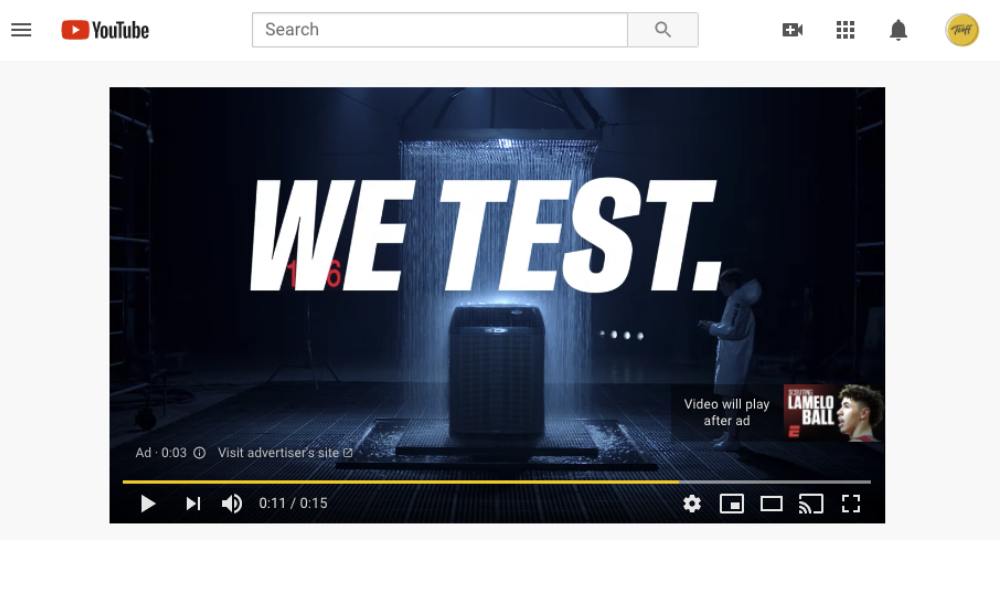
Paste your YouTube video URL. Choose your format:
- In-stream ad (skippable or non-skippable)
- In-feed ad (formerly discovery ads)
Write your:
- Headline (25 characters) – Make it clear and clickable
- Description Line 1 (35 characters)
- Description Line 2 (35 characters)
Example:
Headline: “Struggling With Leads?”
Description: “Watch this quick fix I use”
CTA: “Learn More” or “Sign Up”
Add your final URL and display URL. Use tracking templates if you’re using analytics tools.
Step 11: Review and Launch
Double-check:
- Video preview
- Budget settings
- Targeting
- Destination URL
If everything looks good, hit Create Campaign. Google will review your ad—usually within 24 hours.
Once approved, you’re live.
After Launch: What to Do Next
This is where most people either panic or go hands-off. Don’t do either.
Check your campaign daily, but don’t overreact to one day’s results. Look for:
- View Rate – Are people staying?
- CTR – Are they clicking through?
- Conversions – Are they doing what you wanted?
Let the ad run long enough to gather data. Then start tweaking one element at a time.
Need help analyzing performance? Read: How to Track and Optimize YouTube Ads
Final Tips for a Smooth Start
Let me leave you with a few lessons I’ve learned the hard way:
- Start small, think big – Don’t rush into a huge daily budget
- Always test creatives – Even small script changes matter
- Keep your message clear – One idea per ad
- Review placements regularly – Remove low-performing spots
- Use retargeting – Once you build enough traffic, bring people back
More advice on scaling and retargeting:
Retargeting with YouTube Ads
Closing Thoughts
Launching a YouTube ad campaign doesn’t have to be complicated. Once you get through your first one, it all clicks. You understand what works, what doesn’t, and how to improve.
You’ve now got the steps, structure, and strategy.
If you’re looking for the full beginner roadmap from A to Z, revisit the full starter guide here:
YouTube Video Ads for Beginners
And when your ad is live—send me a link. I’d love to see what you’re building.