

I’ll be honest—Google Analytics 4 didn’t win everyone over at launch. It’s different, a bit clunky at first, and far from intuitive. But once you set it up correctly, GA4 becomes a powerful tool for tracking what matters: conversions.
If you want to understand what’s driving leads, sales, or sign-ups on your site, this guide is for you. I’ll walk you through exactly how I use GA4 to track conversions across websites and landing pages—step by step.
What you’ll learn in this post:
- What counts as a conversion in GA4
- How to set up events and mark them as conversions
- How to use Google Tag Manager with GA4
- What to track (and what to ignore)
- How to avoid the most common setup mistakes
- How to validate your data before running campaigns
Let’s get right into it.
What Is a Conversion in GA4?
In GA4, every conversion is an event. There are no “Goals” like in Universal Analytics. Instead, you tag specific events as conversions. This gives you more flexibility and control—once you know what you’re doing.
Examples of events I track as conversions:
- Form submissions (form_submit)
- Purchases (purchase)
- Button clicks (click_contact)
- Page views on confirmation or thank-you pages
- Scrolls, downloads, or video views for micro-conversions
Not sure which actions to treat as conversions? Start with my guide on what to track.
Step 1: Set Up GA4 on Your Website
If GA4 isn’t installed yet, here’s what to do:
- Create a GA4 property in your Google Analytics account
- Install the GA4 tracking code (gtag.js) or use Google Tag Manager (my preference)
- Confirm installation with Google’s Tag Assistant or the GA4 DebugView
Using GTM? Here’s how I set up conversion tracking with it.
Step 2: Define Your Events
You can create events in three ways:
- Automatically captured events (like page_view, scroll, etc.)
- Enhanced measurement events (like file downloads, outbound clicks)
- Custom events created via GTM or GA4 interface
If you want to track a form submission, for example, you’ll need to:
- Create a trigger in GTM (e.g., when a user reaches a thank-you page or clicks “Submit”)
- Fire a tag that sends a custom event like form_submit to GA4
- Preview and test the tag in GTM before publishing
Want help picking which events matter? Check this breakdown.
Step 3: Mark Events as Conversions

Once your event is firing in GA4, you’ll see it under Admin → Events.
Here’s what I do next:
- Find the event you want to track (e.g., purchase, form_submit)
- Toggle the switch to mark it as a conversion
- That’s it. From now on, this event will appear in your Conversions report
Note: GA4 doesn’t count conversions retroactively. It only starts tracking from the moment you flag the event.
Step 4: Test and Validate Everything
Before running campaigns, always test your tracking setup.
Use:
- GA4 DebugView to check if the right events are firing
- GTM Preview Mode to ensure triggers work as expected
- Tag Assistant for Chrome to validate code installations
Check all devices. Tags sometimes work on desktop but fail on mobile—don’t skip that test.
What Conversions Should You Track?
Here’s what I track by default for most clients:
- Lead forms (true form submissions—not just button clicks)
- Purchases or add-to-cart actions
- Clicks on email, phone, or contact buttons
- Downloads (eBooks, PDFs, etc.)
- Sign-ups for newsletters, trials, or webinars
- Key funnel page views (e.g., /thank-you, /checkout-complete)
Focus on actions that clearly signal value—not just engagement.
Need help filtering signal from noise? This article helps you focus on the right metrics.
Where Most GA4 Setups Go Wrong
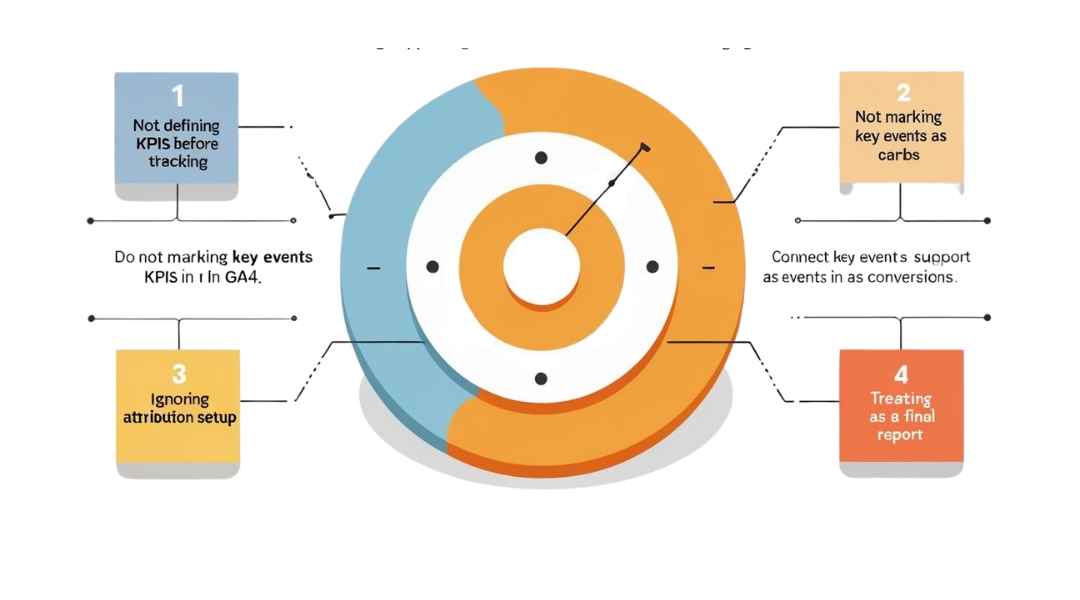
I’ve audited dozens of GA4 setups, and here are the most common issues:
- Tracking the wrong events (e.g., button clicks without confirmation)
- Missing tags on mobile or single-page apps
- Firing duplicate tags for the same event
- Not enabling Enhanced Measurement properly
- Forgetting to mark custom events as conversions
Fixing these is easy, but missing them can throw off all your campaign data.
For more errors to avoid, see my conversion tracking mistakes guide.
Bonus: Use GA4 with Other Platforms
GA4 works best when it’s connected to the rest of your stack.
Here’s how I combine it:
- Google Ads: Import GA4 conversions into your account
- Meta (Facebook) Ads: Track in parallel using Meta Pixel + GA4 for attribution
- LinkedIn Ads: Combine UTM tracking with GA4 for clear source reports
- CRM systems: Pull GA4 data into HubSpot, Zoho, or others via integrations
It’s not about picking one tool—it’s about letting them play nice together.
Want the full ecosystem? See the tools I use with GA4.
Pro Tips to Make GA4 Work for You
- Name your events clearly – avoid vague names like event_1. Use purchase_complete, lead_form, etc.
- Create segments for converters – see what they do differently
- Use the Explore section – build funnel visualizations and path reports
- Set conversion values – if you know how much each lead or sale is worth
- Schedule reviews – GA4 data isn’t helpful unless you check it regularly
Also, don’t panic if the numbers don’t match across platforms. Attribution models vary. Focus on trends, not perfection.
Final Thoughts
GA4 isn’t perfect. But it’s flexible, free, and once you understand how events and conversions work, it becomes a powerful tool in your marketing stack.
I use GA4 to make fast decisions, optimize campaigns in real time, and show clients where their results are actually coming from.If your setup still feels confusing, or you’re not seeing conversions where you should, start here for a full walkthrough.