

I get asked a lot:
“What’s the fastest way to make my site load faster?”
Short answer—it depends on what’s slowing it down. Long answer—use a real checklist so you’re not guessing.
Most websites don’t need a redesign. They need a smart, technical clean-up.
No more oversized images, mystery plugins, or scripts that hijack your homepage.
This is the exact checklist I use when I optimize websites for speed—from WordPress blogs to eCommerce stores.
If your rankings are stuck, conversions are dropping, or users are bouncing—you’re in the right place.
What You’ll Learn in This Article
Here’s what I’ll walk you through:
- The key performance areas I focus on during a speed audit
- Step-by-step fixes you can actually implement
- Tools I use to test and validate performance
- Common speed-killers you might not know are hurting you
- My personal tips for long-term speed maintenance
Why Website Speed Matters (In Case You Forgot)
I’ve said this before, but it’s worth repeating:
- Google uses speed as a ranking factor
- Slow load times increase bounce rates
- Mobile users abandon sluggish sites even faster
- Conversion rates drop with every second of delay
Speed isn’t optional—it’s foundational.
If you still need convincing, start here: How Website Speed Affects SEO and Conversions
The Checklist: What I Actually Fix During Speed Optimization

This isn’t fluff or theory—it’s my real-world workflow.
1. Test Your Current Speed
I always start by getting a clear benchmark using:
- Google PageSpeed Insights
- GTmetrix
- WebPageTest
- Chrome DevTools (for resource tracking and layout shifts)
You can’t fix what you don’t measure.
2. Optimize Images (Every Single One)
- Resize images before uploading
- Compress them using tools like EWWW or TinyPNG
- Use next-gen formats like WebP
- Enable lazy loading for all media, especially below the fold
Unoptimized images are the #1 speed killer I see.
3. Minify HTML, CSS, and JavaScript
- Strip out unnecessary characters and comments
- Combine files to reduce HTTP requests (but carefully)
- Remove unused CSS and defer non-critical JavaScript
Most caching tools like WP Rocket or LiteSpeed Cache handle this well—but you still need to check for layout issues post-minification.
4. Implement Browser Caching
Set rules so returning visitors don’t need to reload everything.
This can be done through .htaccess or your caching plugin.
Static assets (like images, stylesheets, and fonts) should be cached for 30+ days.
5. Leverage Server-Side Caching
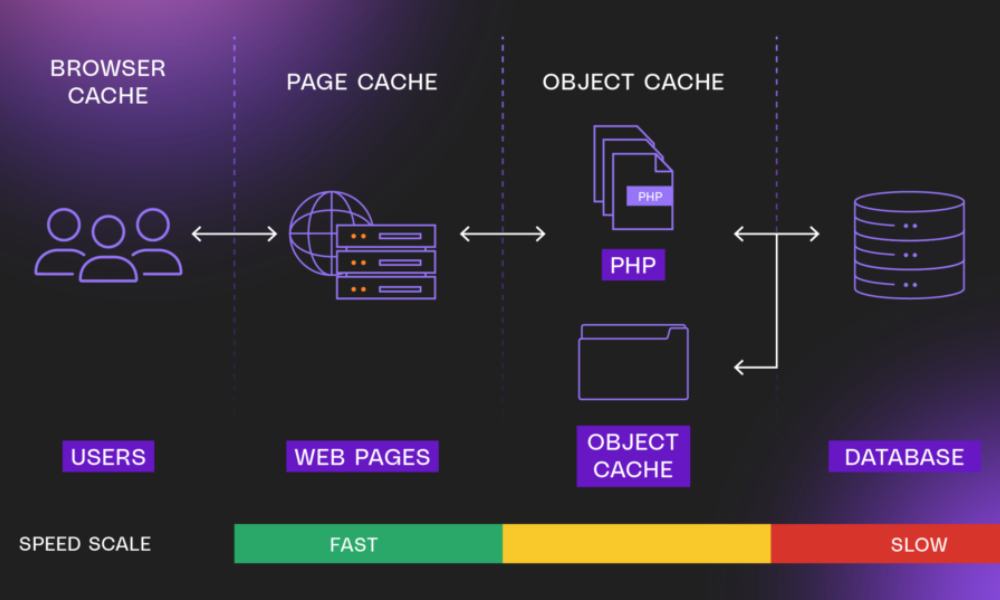
Dynamic content eats resources. I use:
- Page caching for blog posts and pages
- Object caching for database queries
- Opcode caching (if using PHP)
If your host supports LiteSpeed, you’re already ahead.
6. Use a CDN (Content Delivery Network)
A CDN stores your site’s files on multiple servers worldwide.
This reduces the distance between your user and your content.
I typically recommend:
- Cloudflare (free and reliable)
- BunnyCDN (cheap and fast)
- StackPath (for enterprise sites)
7. Reduce Third-Party Scripts
- Only load what you absolutely need
- Defer analytics and tag managers where possible
- Replace third-party fonts with system fonts (if speed is priority #1)
Too many scripts = delayed rendering.
8. Optimize Your Hosting Environment
Your server matters more than you think:
- Avoid shared hosting for high-traffic sites
- Use hosts with built-in server caching
- Enable HTTP/2 or HTTP/3 support
- Upgrade PHP version (at least PHP 8.1+)
Good code on a slow server is still a slow site.
9. Clean Up Your Plugins
On WordPress sites, I audit plugins like this:
- Deactivate and delete what’s unused
- Replace bloated plugins with lighter alternatives
- Avoid plugins that load across every page unnecessarily
One rogue plugin can wreck your TTFB (Time to First Byte).
10. Reduce Redirects and 404 Errors
Redirect chains and broken links add server hops.
I fix:
- 301 loops
- Broken image links
- Internal links pointing to deleted content
These also hurt crawl efficiency—so it’s a win-win.
Tools I Use to Run This Checklist
Here’s my standard toolkit for optimization:
- PageSpeed Insights – for Core Web Vitals
- GTmetrix – for asset-level breakdowns
- WebPageTest – for global testing
- Chrome DevTools – for identifying render blockers
- Cloudflare – for DNS and CDN setup
- WP Rocket / WP-Optimize – for caching and file cleanup
- EWWW / ShortPixel – for image compression
- Query Monitor – for tracking slow-loading plugins
Each tool has its role. Use the right ones and speed work becomes repeatable and scalable.
Common Mistakes I See (That You Can Avoid)
This wouldn’t be a checklist without red flags.
- Uploading giant header images that scale down
- Using five analytics tools when one will do
- Not setting cache-control headers
- Forgetting to check mobile speed
- Running 20+ WordPress plugins without knowing what they all do
- Ignoring slow TTFB caused by bad hosting
The good news? Most of these are easy wins.
Bonus: How I Maintain Speed Over Time
Speed isn’t set-it-and-forget-it.
I recommend:
- Running a monthly speed audit
- Reviewing third-party tools every quarter
- Flushing cache and database weekly (automate this if possible)
- Checking your site’s mobile speed after every design or plugin update
Speed is performance. And performance builds trust.
Final Takeaway: Follow the Checklist, Fix the Problem
Here’s the deal:
Your site doesn’t need to be perfect.
It needs to be fast, responsive, and reliable.
This checklist will help you get there—and stay there.
If you’ve been chasing Core Web Vitals or trying to figure out why your bounce rate keeps creeping up, speed could be the problem.
So stop guessing. Start optimizing.
The full list—tools, steps, and resources—is always available in my Website Speed Optimization Checklist.